Taking action after your upgrade
PI2 upgrade support guide
Preparing for your upgrade
Taking action after your upgrade
Product updates
Welcome to PI2
On your upgrade date, all of your existing PI data — including people, jobs, teams, surveys, and assessment results — will be moved to the new experience, PI2. Please note that the data migration process is irreversible.
How to use this guide
On the left-hand side, you’ll see links to every page in this guide. While you’re free to read up on pre-upgrade materials, the most pertinent information is located here, in the “Taking action after your upgrade” section.
This section is broken up into four pages, all of which we recommend you read:
- Welcome to PI2 (you’re here!)
- Reviewing PI2 permissions for accuracy
- Cleaning up people data in PI2
- Finding imported jobs, teams, and surveys in PI2
Before we begin: Two important notes
1. Verify your Organization Admin in PI2.
In PI2, the highest possible user permission is known as “Organization Admin.” Upon upgrading to PI2, this user permission is granted to the following users from Legacy PI:
- The Key Contact at your organization
- The Account Owner from Legacy PI
In some cases, the Key Contact and Account Owner may be the same employee. In other cases, they may be different employees or no longer exist at your organization altogether.
Before you do anything else in PI2, please ask internally to verify that:
- The Key Contact and/or Account Owner can log into PI2.
- They can access PI Administration, denoted by the gear icon in the top-right corner.

- They are denoted in the software as an “Organization Admin.” (This information can be found on the “Employee Access Settings” page in PI Administration.)
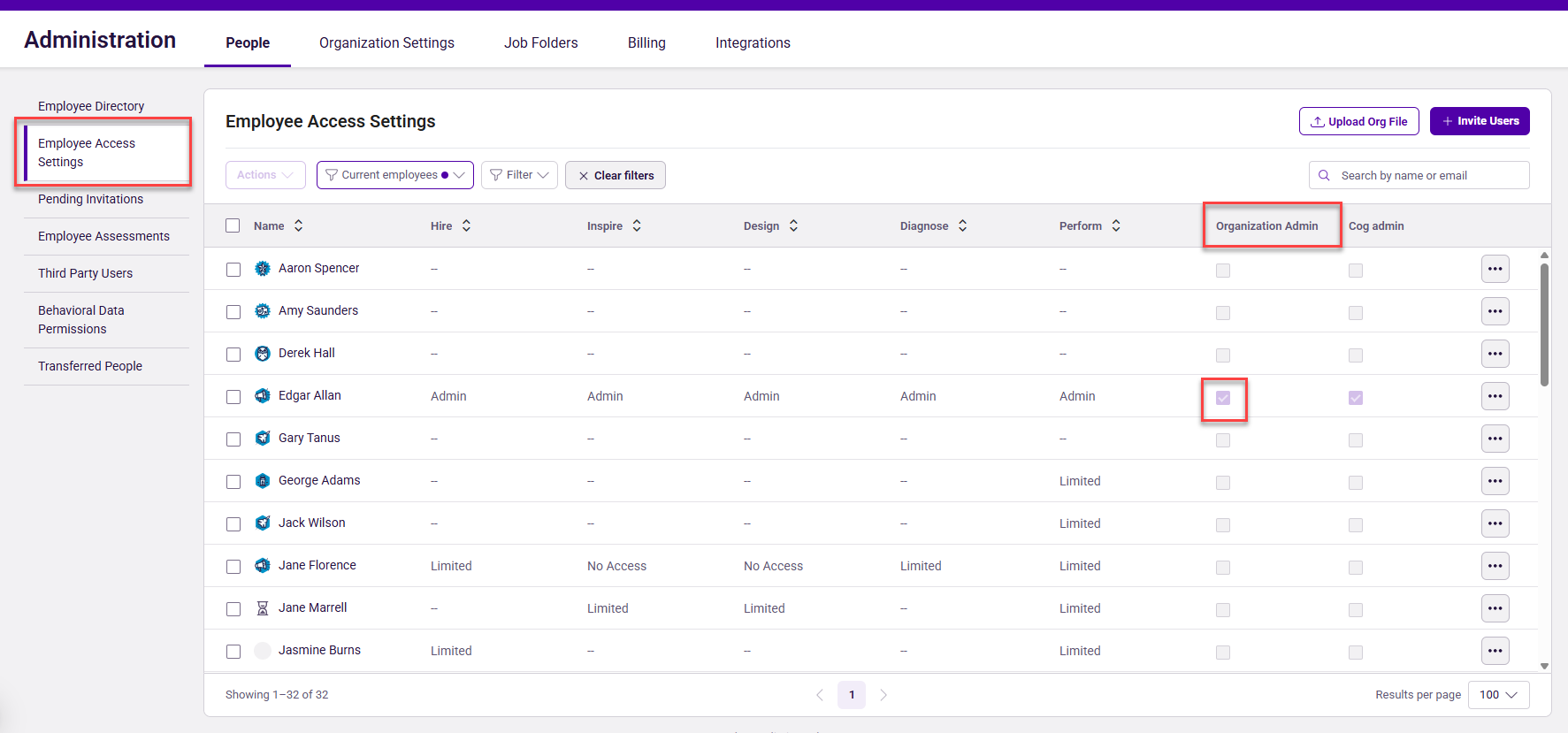
Important: If no one has Organization Admin access, please reach out to your PI consultant with a new Key Contact so they can update them in the system and grant them proper access.
2. Update your existing software URLs.
Page URLs in PI2 are structured differently from Legacy PI. While there are redirects in place, you may run into the following “dead end” error:
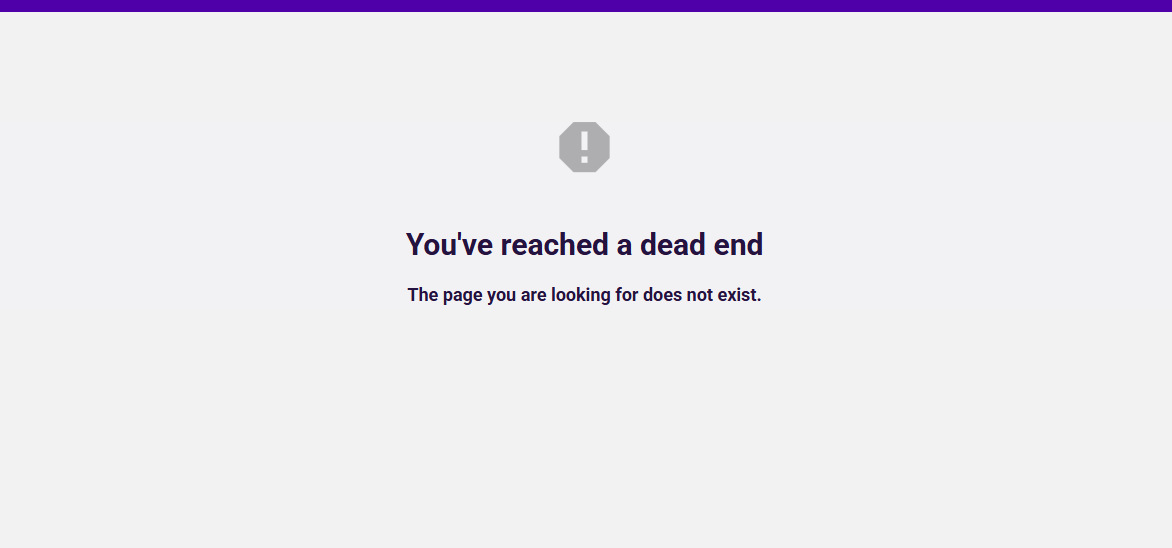
To avoid this error, make sure to update any existing bookmarks you have with the new PI2 versions.