Taking action after your upgrade
PI2 upgrade support guide
Preparing for your upgrade
Taking action after your upgrade
Product updates
Finding imported jobs, teams, and surveys
Once you’ve reviewed user permissions and updated your people data, the final cleanup item is to track down any jobs, teams, or surveys from Legacy PI that you’d like to continue using in PI2.
In this section, we’ll show you how to find what you’re looking for.
Hire: Finding jobs, targets, and assessment links
1. Get job fit insights by attaching candidates to a job.
In PI2, all the data you need for hiring — i.e., the Job Target and candidate assessment data — are associated with a specific job.
Any candidates associated with a job in Legacy PI should have carried over seamlessly. However, if a candidate wasn’t associated with a job, you must first attach them to a job to get full candidate insights in PI2. (This is an intentional design choice to encourage fair and objective hiring.)
2. Access old candidate assessment links (and create new ones).
Any candidate assessment links you had in Legacy PI were transferred to PI2. Access them by clicking the “Imported invitation links” link, located under the “Create new job” button on the Hire homepage.
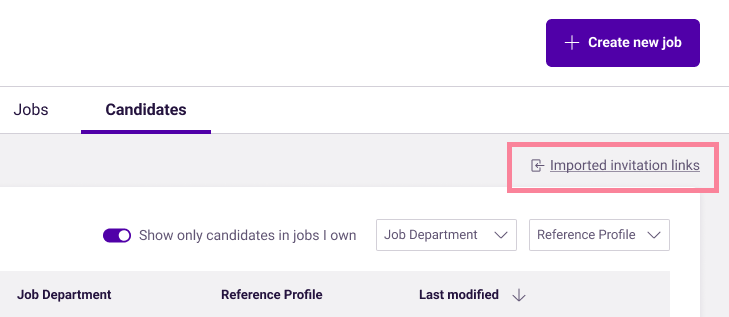
Please note: Imported candidate assessment links are read-only. This means you can view them, but you can no longer modify the link itself or its associated settings. Moving forward, we strongly recommend using the new versions of these links, which were created specifically for PI2 and can be edited to your liking.
3. Create new collaborative targets to view stakeholder inputs
While Job Targets and Job Assessment results are carried over to PI2, there are some important caveats.
- Any pending Job Assessments at the time of upgrade will be lost and cannot be recovered.
- If you manually edited a Job Target, it will appear in PI2 as a “custom target.” You won’t be able to view JA inputs for these targets.
We know these are both frustrating scenarios. In either case, the best approach would be to create a new “collaborative target” in PI2.
Diagnose: Finding historical engagement surveys
All your historical engagement surveys are carried over from Legacy to PI2. Access them by clicking the “Download imported reports” link, located next to the “Explore our surveys” button on the Diagnose homepage.
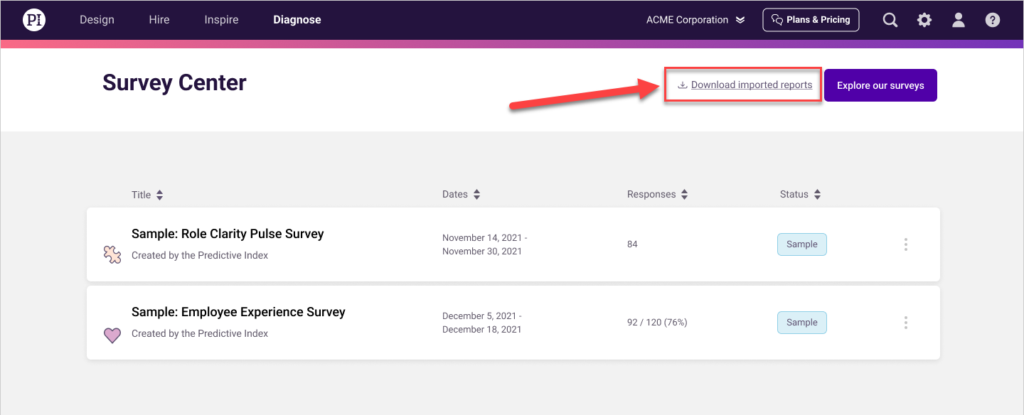
Please note: Imported engagement surveys are in PDF format only; you can view them, but the data won’t feed into the actual Diagnose software. This means you won’t be able to view year-over-year trends or analyze the findings using heatmaps or other tools.