The PI2 Upgrade
PI2 Partner Readiness
Introduction
The PI2 Product
The PI2 Workshops
Pricing and Packaging
Sales systems
The PI2 Upgrade
Conclusion, next steps, and resources
Welcome Guide demo
We’ve created this to show you what Legacy to PI2 Upgrade clients will see and experience in the Welcome Guide.
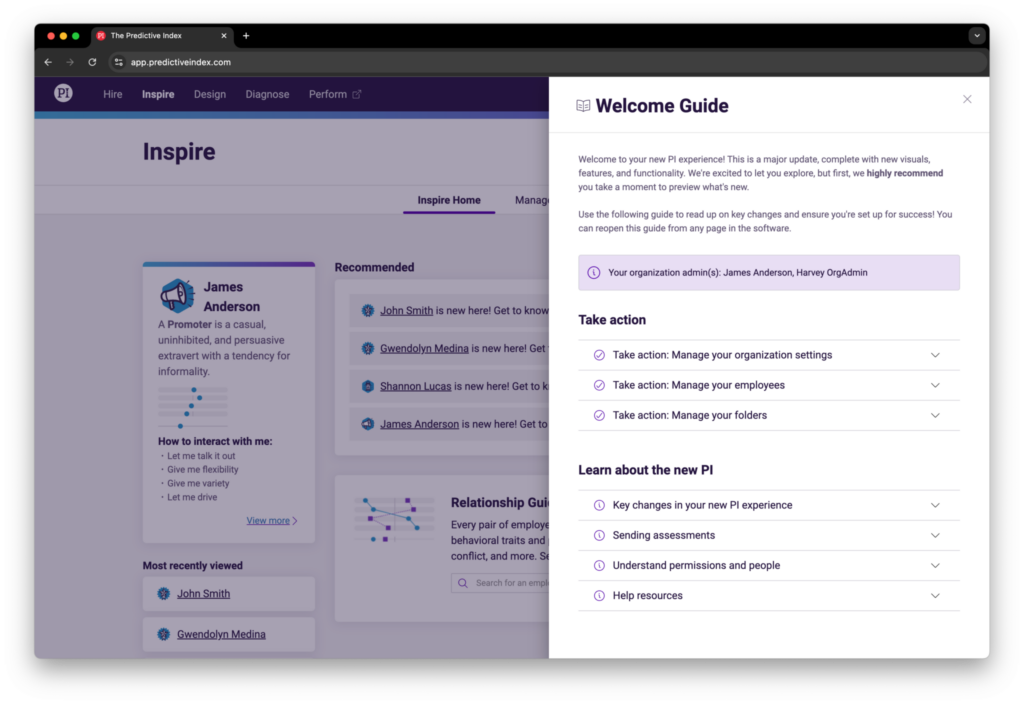
Take action
Take Action: Manage your organization settings
Your organization email domains control what employee email addresses are allowed to receive PI software access or assessment invites.
If your company uses more than one email domain, add those domains from the Organization Domains page within Administration.
Exception: By default, organization admins can add any email to the software (such as freemail) from Administration. This setting can be disabled at any time.
Use this function to remove Personally Identifiable Information (PII) and permanently anonymize employee or candidate records in the software. You can anonymize people individually or in bulk.
For example: You may want to anonymize the records of candidates who did not move forward in the hiring process.
Note: If you scheduled bulk anonymization in the legacy version of the PI software, you will need to set it up again in the new PI software.
Visit the Anonymize People Data page.
Enable or disable multi-factor authentication (MFA) for your organization. By default, this setting is turned off.
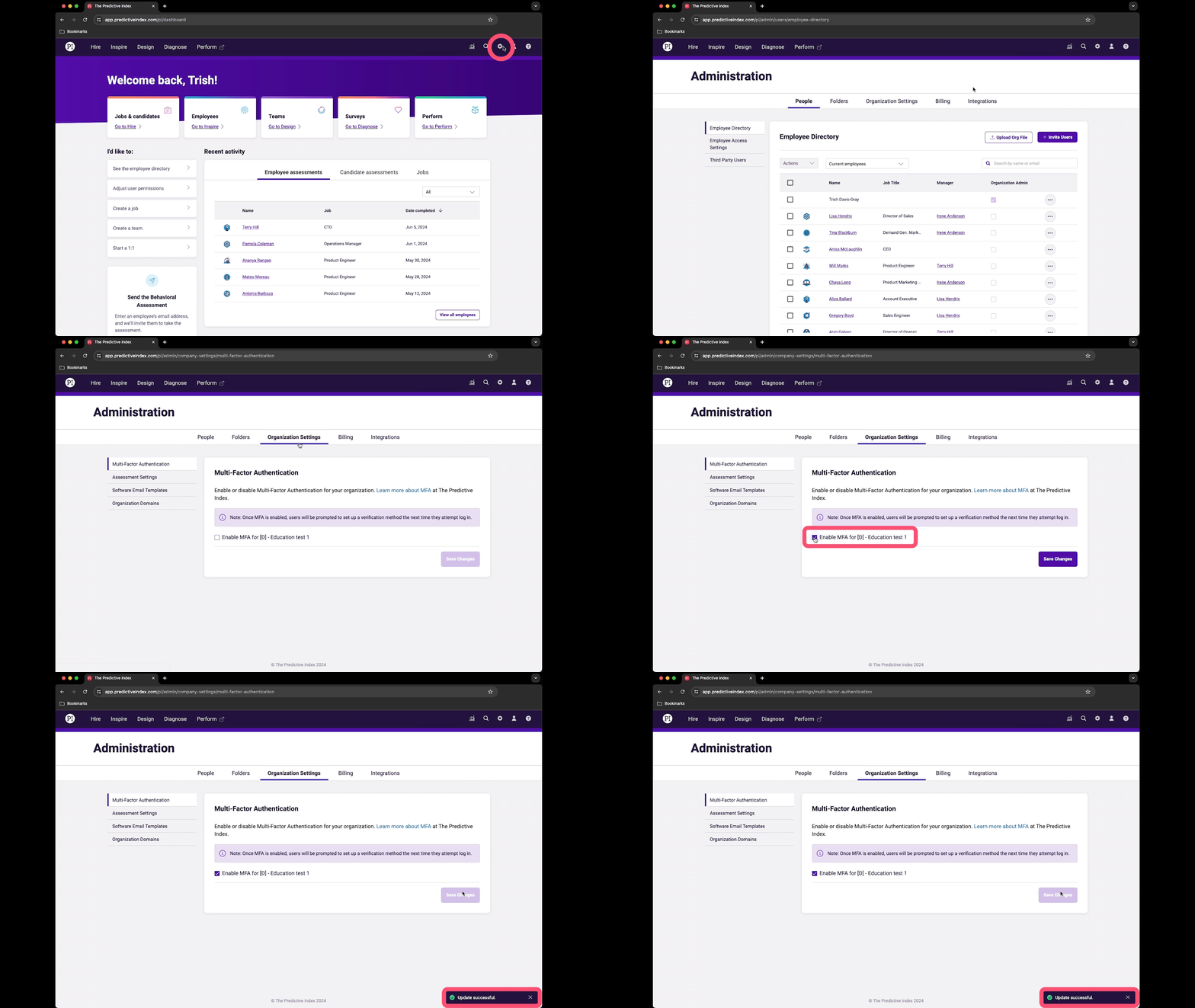
Once MFA is enabled, users will be prompted to set up a verification method the next time they attempt to log in.
Your assessment settings have automatically been carried over from the legacy PI experience.
Take a moment to review your assessment settings and make any changes.
Visit the Assessment Settings page.
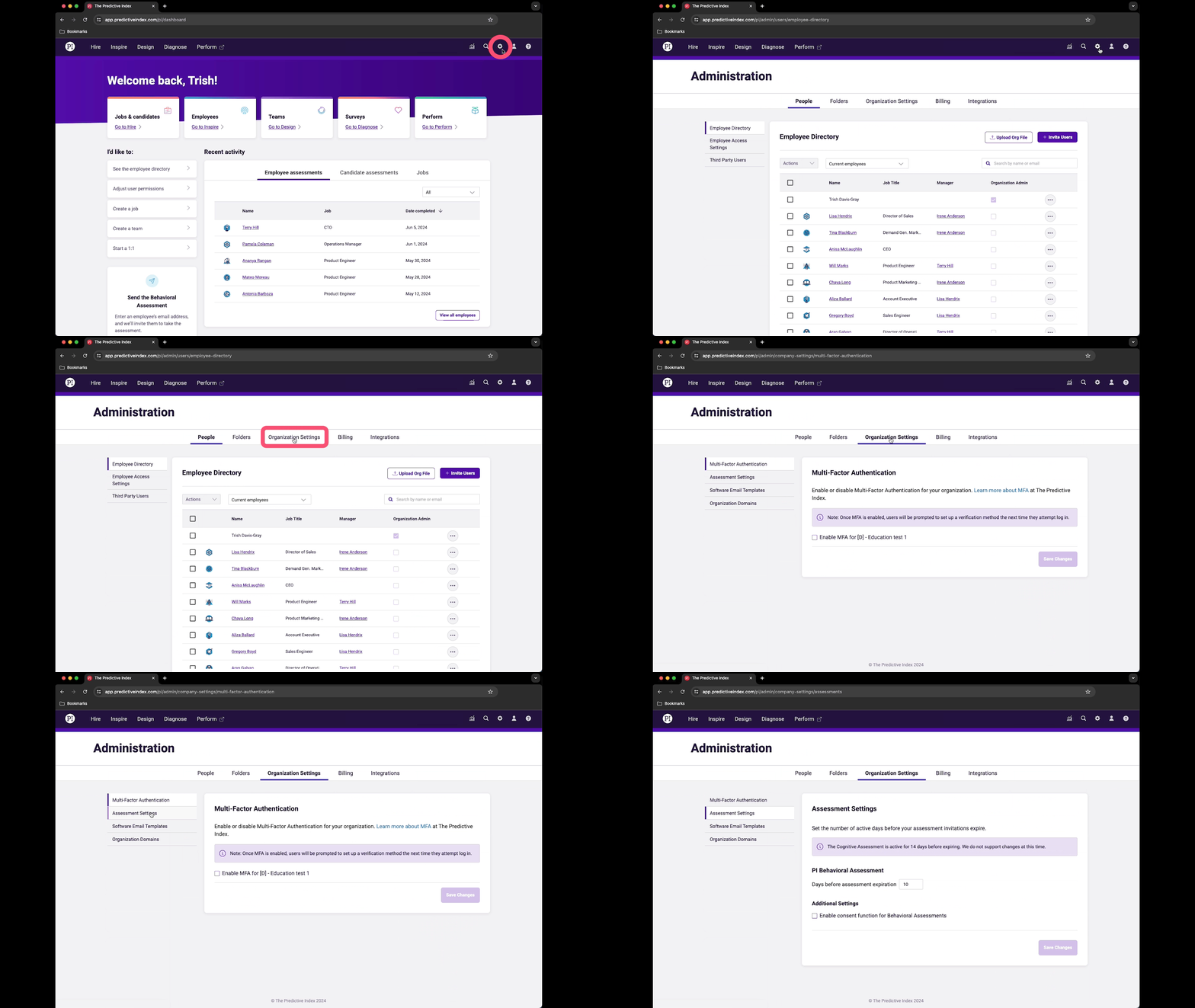
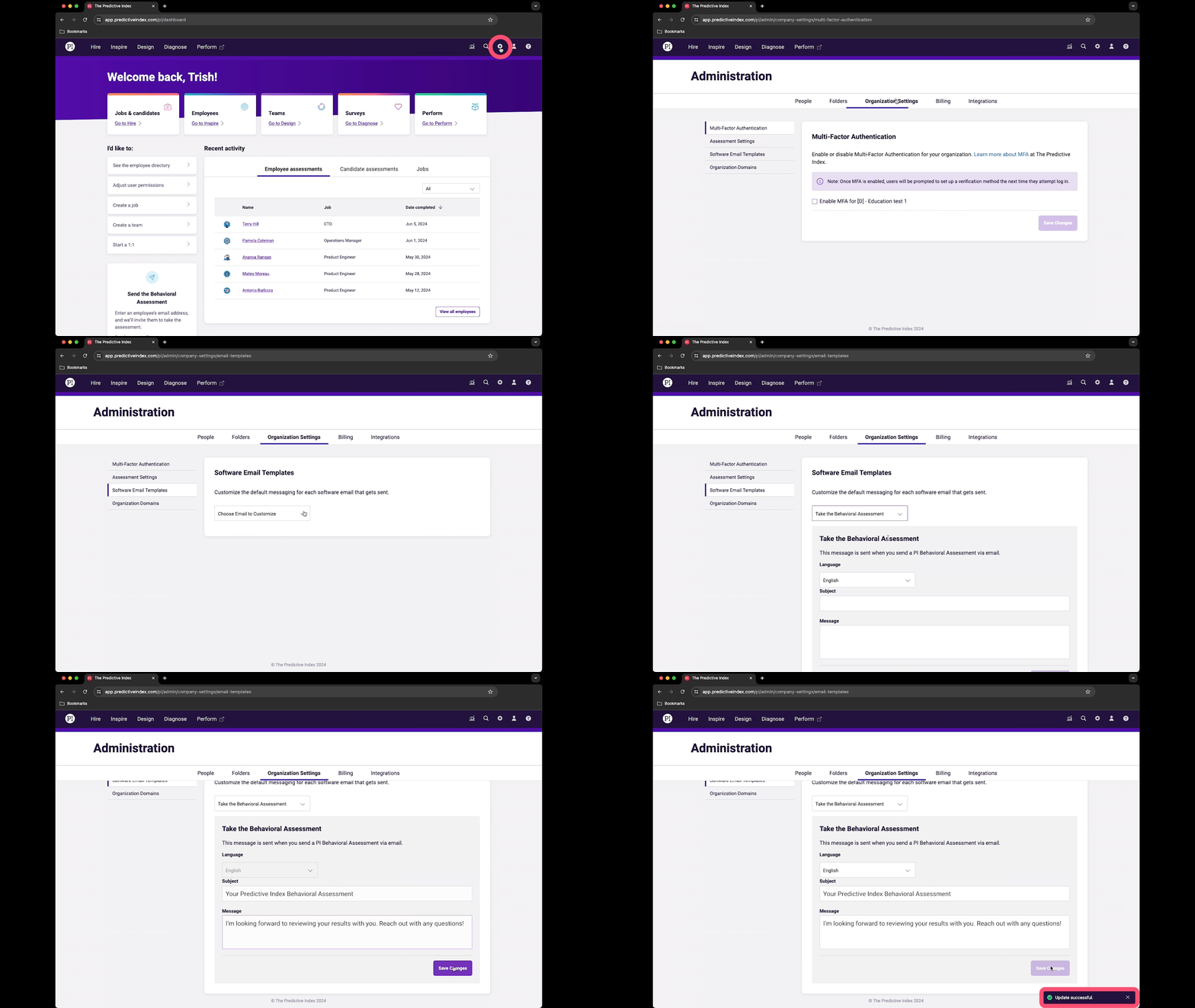
If you created custom templates for the Behavioral Assessment invitation email, we’ve carried those templates over to the new experience. All other templates have been sunset.
Review your existing BA templates, and fine-tune the language to your liking.
Visit the Software Email Templates page.
Take action: Manage your employees
Your Employee Directory lists all employees in your organization. After upgrading, you may see people listed who are former employees. You can safely archive and anonymize those records.
Take a moment to review your Employee Directory and ensure all of your active employees from the legacy PI experience are there.
Visit the Employee Directory page.
If employees are missing from your Employee Directory, visit the Transferred People page. There, you will see anyone from your legacy PI account who does not meet the criteria to be considered an employee or a job candidate.
Review your Transferred People page, and choose to either move them to the Employee Directory, move them to the Candidate list in PI Hire, or archive them.
Visit the Transferred People page.
Take action: Manage your folders
Your folders in the legacy software have been transferred to the new PI experience. You can review transferred folders from the Folders tab within Administration.
Learn about the new PI
Key changes in your new PI experience
We’re excited to bring you an even better way to experience your talent optimization journey! All of your PI data is here, and upgraded with:
- New features to explore
- Easier navigation and streamlined functionality
- Improved sharing and collaboration
Looking for a specific PI feature? We’ve made a few name changes between the legacy and new PI experiences.
Watch a quick video about the changes in the new PI experience.
Access the Administration section using the gear icon in the top navigation bar. There, all employees will be able to view the Employee Directory.
Hire allows you to create behavioral and cognitive job targets, screen for potential candidates, and generate interview questions to confirm that alignment.
The Hire experience has been updated and improved to include the following:
- Streamlined job targeting
- Quicker assessment sending
- Enhanced interview guide
- NEW: Job Ad Optimizer
Inspire allows you to see relationship data, development guides, and various other coaching tools for employees who have completed the Behavioral Assessment.
The new Inspire experience includes the following enhancements:
- Behavioral Snapshot
- Behavioral Report
- Self-Concept Report
- Relationship Guide
- Personal & Management Development Guides
- NEW: Management Tips
Design allows you to strategize team development for new hires and tenured employees. Visualize anyone who has taken the Behavioral Assessment on a “Team Map,” and see where you’re aligned or misaligned for the work at hand.
The new Design experience includes the following:
- Streamlined team creation
- Simplified strategy planning
- Updated action planning
Diagnose allows you to collect candid, confidential feedback, so you can monitor engagement trends and take action to improve the employee experience.
The new Diagnose experience includes the following:
- The Employee Experience Survey
- Streamlined organization upload
- Heatmaps
- NEW: Pulse surveys
- NEW: Year-over-year reporting
Perform allows you to create meeting workspaces, collaborate on agendas, assign action items, and share feedback with peers. (Clicking Perform will open a new tab.)
If you’re an existing Perform user, the experience will largely stay the same, although you may see additional Perform features that weren’t available before.
Sending assessments
We’ve updated assessment sending to make the Behavioral Assessment process simpler. There are three main ways to send the BA to employees:
- Anyone can invite an employee to take the BA by entering their email on the homepage dashboard.
- Anyone can invite a co-worker to either Inspire or Design. (They’ll automatically receive a BA invite.)
- Admins can send BA invites individually or in bulk from the Administration page.
Note: The ability to invite employees into the software is a toggleable permission that admins can disable at any time from the Edit Employee Details page.
We’ve embedded candidate assessments right within PI Hire. Now, you can manage your Job Target and send assessments from the same experience.
Assessment invitation links are now located within PI Hire.
Any existing candidate links that were active in the legacy experience have been imported into the new PI experience. However, these links can no longer be modified.
Note: Any employee or “other” invitation links within the legacy experience will no longer be accessible in the new PI experience.
By default, the PI Behavioral Assessment and corresponding BA report is sent to candidates and employees in English. We plan to add the ability to customize this default later this year.
Note: Assessment takers can choose between 68 languages when taking the assessment itself.
Understand permissions and people
Whereas user roles in the legacy PI experience applied to the entire platform, employee access levels in the new platform apply by product. This gives admins more control over who can see and do what.
Admins can visit the Employee Access Settings page within Administration to review permissions and modify them as needed.
In the legacy experience, users were manually assigned a person type: Employee, Candidate, Other, or Unknown.
In the new experience, we’ve streamlined these designations to focus on just two: employees and candidates.
- Employees are people whose email address match your organization domain.
- Candidates are people who are associated with a job in Hire.
If someone meets both criteria, they will be considered both an employee and a candidate.
If a person does not match either criteria, organization admins will need to either reclassify or archive them. Admins can review these people via the Transferred People page in Administration.
Help resources
To help ensure a seamless upgrade experience, we’ve prepared an interactive support guide. Read up on all the new features and improved functionality, in one convenient place.
Have questions about your new software that aren’t covered here? We’re hosting a live webinar series dedicated to answering those questions.
Need help finding or using certain features within the software? Visit our Documentation Center for detailed how-to guides, FAQs, permission explainers, and more.
Want a refresher on how to interpret your PI results? Visit our PI Basics webpage for a crash course on our science, plus tips to help you implement PI within your organization.