The PI2 Product
PI2 Partner Readiness
Introduction
The PI2 Product
The PI2 Workshops
Pricing and Packaging
Sales systems
The PI2 Upgrade
Conclusion, next steps, and resources
Behavioral Data Permissions & Folders
This lesson was last updated on August 25th, 2025.
Behavioral Data Permissions (BDP) is new functionality in PI2 that will be the primary method for controlling visibility of employee behavioral data for Limited users.
Why is BDP important?
In Legacy, the visibility of behavioral data was determined exclusively by folders. We heard from clients that this needed to change. In 2024 alone, there were a staggering 847 support tickets regarding folders and their associated permissions. Behavioral Data Permissions is a streamlined approach to managing visibility across an organization.
The majority of PI users will not be affected by BDP. Most clients allow for open visibility of behavioral data across their organization. BDP’s default settings will provide that open visibility.
BDP will have three key benefits:
- Automated Access: Users will see behavioral data for their direct reports, managers, and key colleagues based on a client’s organizational structure.
- Reduced Admin Effort: Access updates automatically as users edit team structures, reducing manual effort from the organization admin or partner.
- Straightforward Settings: Organization admins determine whether access remains restricted and which working relationships users can see in the account.
The Client Experience with BDP
How Behavioral Data Permissions work
- Click here to learn how BDP works in PI2.
- Click here to learn how to access BDP in the software.
Open vs. Restricted
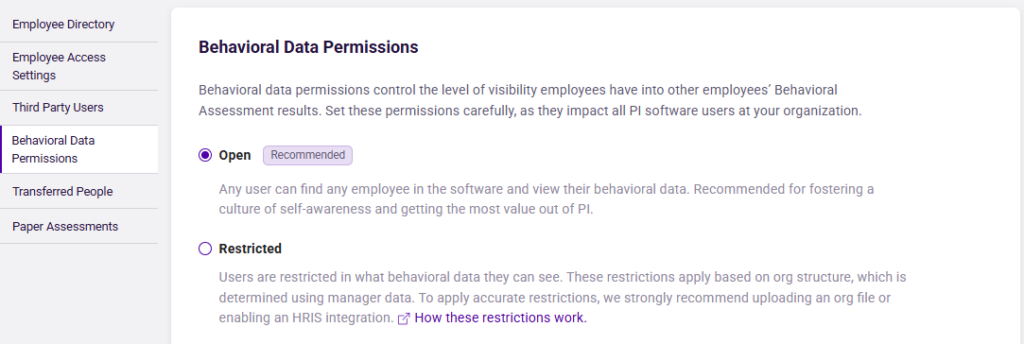
What is the “Open” format?
“Open” allows all PI software users to find any employee in the software and view their behavioral data. This is the recommended option because it fosters a culture of behavioral awareness and maximizes their PI subscription. All net-new PI2 clients will default to the “Open” format.
What is the “Restricted” format?
“Restricted” allows organizations to configure their employee visibility permissions by selecting from four rules (covered below). Legacy clients who used folders to restrict visibility will default to the “Restricted” BDP setting in PI2. This occurs when a non-admin user has access to employee data via folders.
In “Restricted,” each employee in the directory must have an assigned manager in order for these permissions to take effect. There are two ways to do this.
- If the client practices good data hygiene, an HRIS integration is the best path for them.
- If a client that does not practice good data hygiene wishes to leverage an HRIS integration it could lead to duplicative records and a poor administration experience. Good data hygiene is critical if this is the desired path forward.
- Recommended: If the client does not have clean data, and requires a “Restricted” setting, then they must use Org Upload.
- After completing an Org upload, they may find they have employees who are not yet assigned to managers. Click here to learn how to assign employees to managers manually. If employees are not assigned, the software will display the pop-up in the image below.
- The majority of clients will fall into this category.
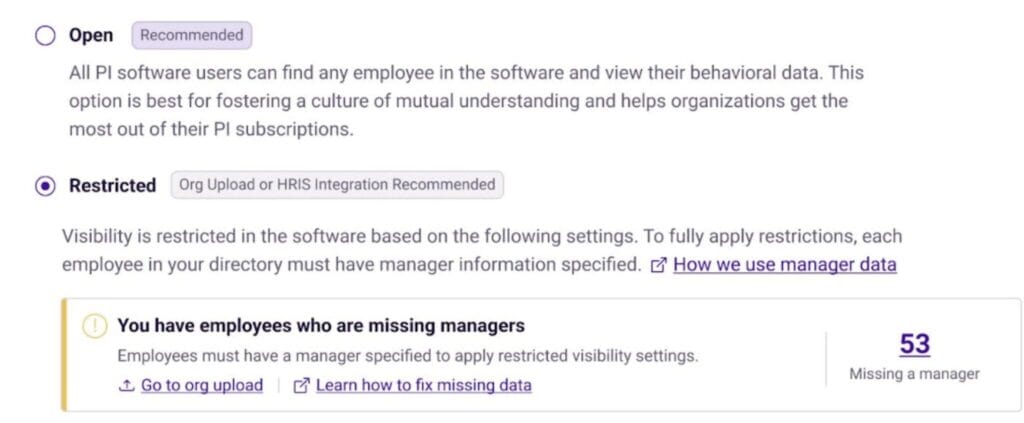
“Restricted” Rules Overview
In “Restricted”, clients are able to select from the following four rules:
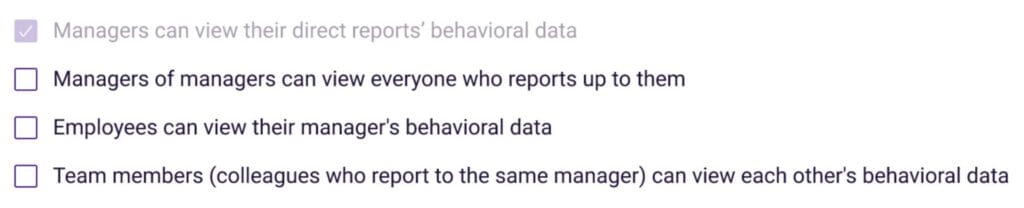
Visibility of the client firm’s behavioral data will be determined by the rules that they select.
- The first rule, “Managers can view their direct report’s behavioral data”, will always be selected by default. This can not be turned off.
- The second rule, “Managers of managers can view everyone who reports to them”, will allow top level leaders to view all employees beneath them in their entire reporting line.
- The third rule, “Employees can view their manager’s behavioral data”, allows employees to view the behavioral data of the individual they report to.
- The fourth rule, “Team members can view each other’s behavioral data”, allows teammates to view one another’s behavioral data who report to the same manager.
Any combination of these rules can be selected to meet the organization’s unique preferences.
How does BDP interact with employee access levels?
A user’s access to jobs, teams or other “items”, is determined by access level in PI2. These access levels will take priority over “Restricted” BDP permissions. If a user has admin access to a particular PI product, they will see all behavioral data within that product, regardless of BDP settings.
Please review this article on How BDP Works in the Documentation Center for an in-depth look into this nuance.
In the following two examples, John and Sarah work together at a “Restricted” client, but work in different departments. They do not have access to see each other’s data through BDP.
- Sarah is already attached to a ‘Sales Manager’ job as an internal candidate.
- John has access to the job.
- Access to the job overrules BDP, therefore, John can see Sarah’s behavioral data within the context of the Job.
- John is not able to add Sarah to the job himself.
- John cannot see Sarah in Inspire.
- Sarah was previously added to the ‘Sales Team’ in PI Design.
- John has access to the team.
- Access to the team overrules BDP, therefore, John can see Sarah’s behavioral data within the context of the Team.
- John is not able to add Sarah to the team himself.
- John cannot see Sarah in Inspire.
Upgrade & BDP
When a client completes their upgrade, their default settings will depend on a few determining factors. These can be updated post-upgrade any time. Partners can identify these settings ahead of the client’s upgrade via their Salesforce Upgrade Report.
Upgrade Report BDP Key
In your Salesforce Upgrade Reports, you will see a column titled ‘Upgrade cohort’. There are additional indicators within this column which point to their default BDP settings after upgrade.
See table below for examples.
| Indicator | Definition | Example image | What settings will they default to post-upgrade? |
|---|---|---|---|
| FP* | Folders are being used in Legacy to restrict visibility permissions at this client. | 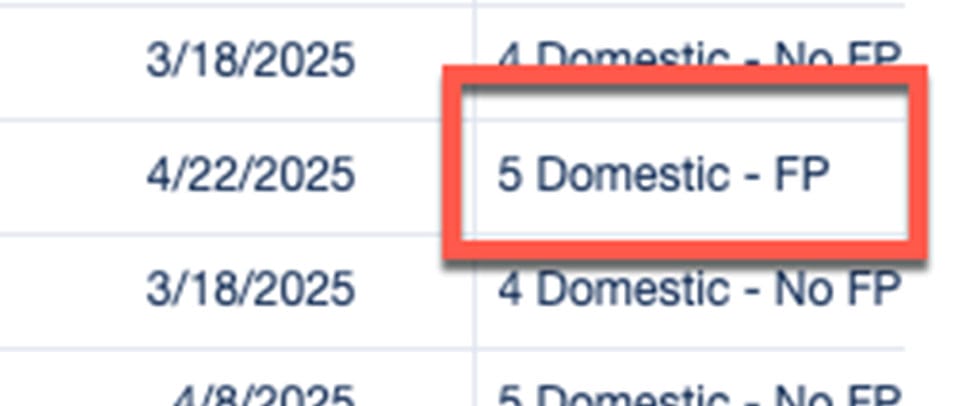 | Restricted |
| No FP | Folders are not being used in Legacy to restrict visibility permissions at this client. | 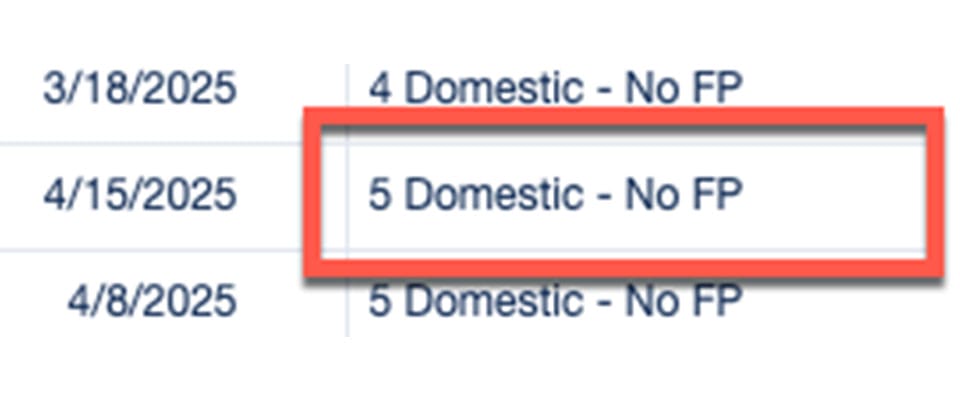 | Open |
| No FP Usage | Folders are being used in Legacy at this client, but not to restrict visibility permissions. | 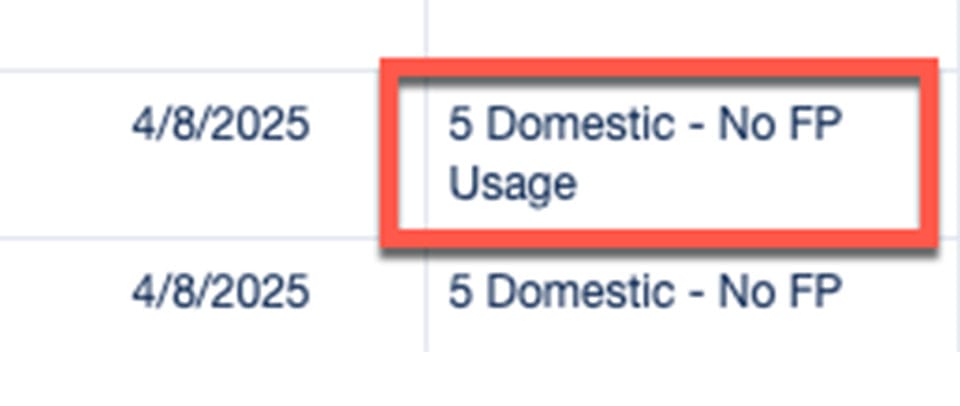 | Open |
Important: Any client who was upgraded before April 1, 2025 will default to “Open.” Any new clients who are sold after April 1, 2025 will also default to “Open.”
PI’s Suggested Best Practices after Upgrade
Partners should take the following steps with their clients after Upgrade:
- Discuss BDP preferences with the client.
- Choose between “Open” or “Restricted”. Open is preferred.
- If choosing “Restricted”, ensure manager data is updated so managers can access direct reports’ data.
- Review and update the Employee Directory to include managers for all employees. (Org Upload or HRIS Integration with clean data).
- Select the restrictions settings they wish to apply to their organization.
Folders in Legacy vs. PI2
In Legacy, there were three purposes for folders:
- Folders used for employee data (Employee Folders)
- Folders used for jobs and candidates (Job Folders)
- Folders used for collecting prospect data (Prospect Folders)
Employee Folders in PI2 will work differently than how users may be accustomed to in Legacy. Employee Folders will be sunset on August 26th, 2025.
In Legacy, folders served the dual purpose of storing employee data and controlling employee visibility. As outlined in this client-facing article, PI2 no longer needs folders for those purposes for two reasons:
- Employee data access is now controlled by BDP.
- Employee data organization is now managed using the employee directory, which allows for quick and easy filtering.
However, Job Folders will remain in PI2.
Job Folders will continue to allow users to organize jobs and candidates within PI Hire. These folders will also serve the purpose of controlling visibility of that data. In order to see a job, a user must have the folder which holds that job shared with them, and have the correct user access level in PI Hire.
- Learn more about Access Levels.
- Learn more about creating Job Folders.
- Learn more about adding jobs to a Job Folder.
Within PI2 Business Accounts, Prospect Folders will continue to be found within a PI Partner’s Seller Tools. These folders are partner-facing only. When a Partner creates an Invitation Link, the system creates a Prospect Folder with the same name to store assessments completed from that link. PI Partners can then use the BA results from those Invitation Links to create [D] Prospect Demo Accounts.
- Learn more about Demo Accounts.
- Learn more about transferring data from PI2 Prospect Folders to PI2 Client Accounts.
To recap, Job Folders will remain in PI2, but Employee Folders will not. In its place, clients will need to use BDP to restrict visibility of behavioral data. Prospect Folders continue to be available for partners in PI2 Business Accounts.
FAQs
No. View this client facing article on the differences between folders in Legacy and PI2.
We currently only plan to support the ability to report to one manager in the employee directory.
As you prepare your clients for upgrade, discuss if they would prefer an “Open” or “Restricted” setting with them. Some of your clients may use folders without intending to restrict visibility.
If your client uses folders, ask: “Do you need to restrict behavioral data with your employees?”
- If the answer is no, they should be in an “Open” setting.
- If the answer is yes, they should be in a “Restricted” setting.
If a client wishes to enter a “Restricted” setting after upgrade, they can prepare by reviewing the PI2 Upgrade Support Guide and attending the Client Upgrade Webinars.
The answer depends on the PI product:
- PI Hire: The Limited user can view any jobs/candidates they have access to and can add external candidates, as usual. However, they will only be able to add employees (i.e., internal candidates) whose behavioral data they are able to see according to their organization’s BDP settings.
- PI Design: The Limited user can view any teams they have access to, as usual. However, they will only be able to add employees whose behavioral data they have access to see according to their organization’s BDP settings.
- PI Inspire: The Limited user can view their own behavioral data, as usual. However, they will only be able to search for and view employees whose behavioral data they have access to see according to their organization’s BDP settings.
If manager data has not been added for BDP, limited users will see this notification upon logging in. See image below. 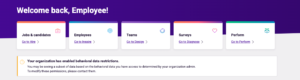
Learn how to add manager data for BDP.
- PI Diagnose does not leverage behavioral data within the software. Therefore, it is not impacted by BDP.
- Although PI Perform does leverage behavioral data, BDP does not currently impact PI Perform.
If they are in an “Open” setting, they will be able to see this data freely.
If they are “Restricted” they will be able to see cross-functional data if they are on the same team in Design. They will not be able to search for one another’s behavioral data in Inspire in a restricted setting.
No. Client accounts cannot have different BDP settings for multiple departments or locations.
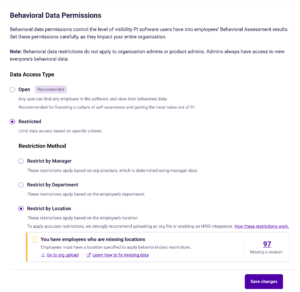
In Q4 2025, a client will be able to set employee visibility permissions (via BDP) by selecting between department, location, or manager. See image below.
Do you have questions about BDP that weren’t answered above? Submit them here.
If you have a feature request in regards to BDP, please submit it via Feature Upvote.